Everything Lucium does.
130 features: 24 foundations that are always there, and 106 options, each with its own switch in Settings.
130 features
-
Sidebar
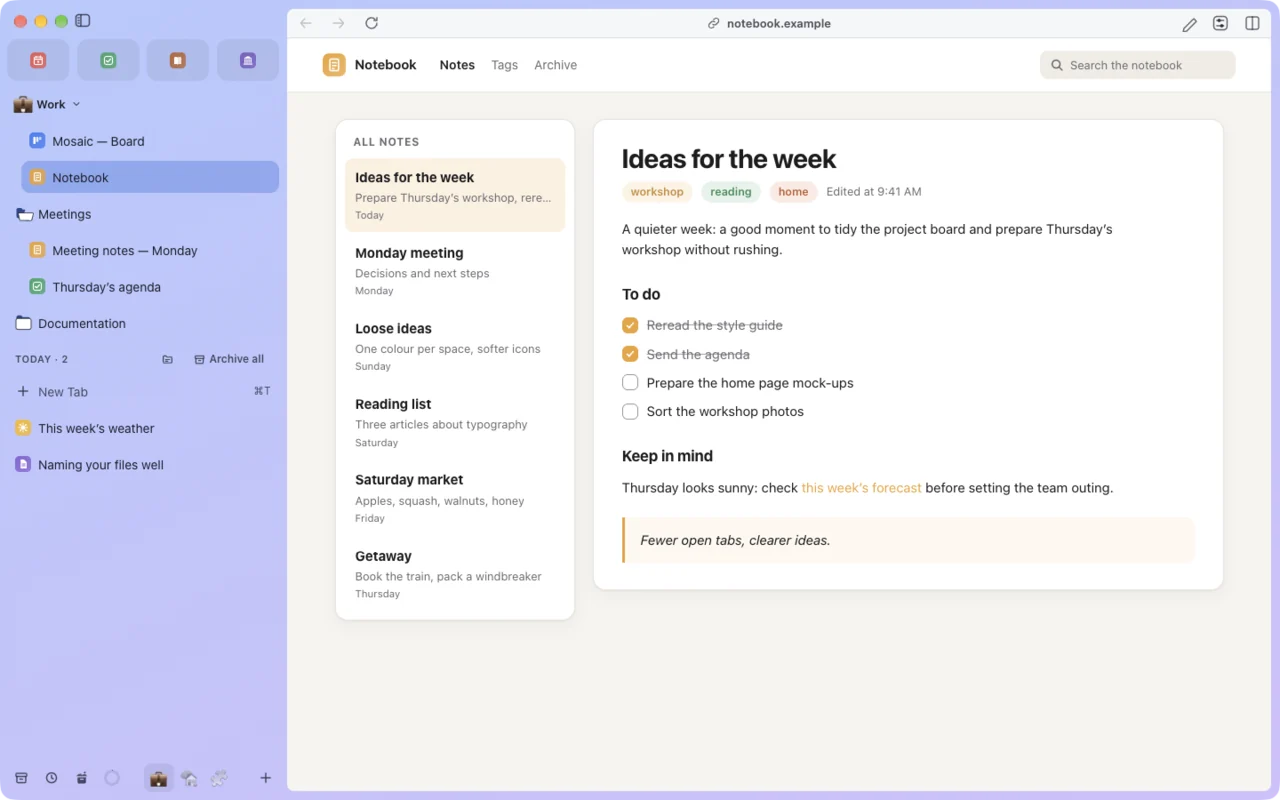
Pinned tabs, nested folders, favorites at the top, and today’s tabs, which archive themselves after 12 hours.
-
Spaces
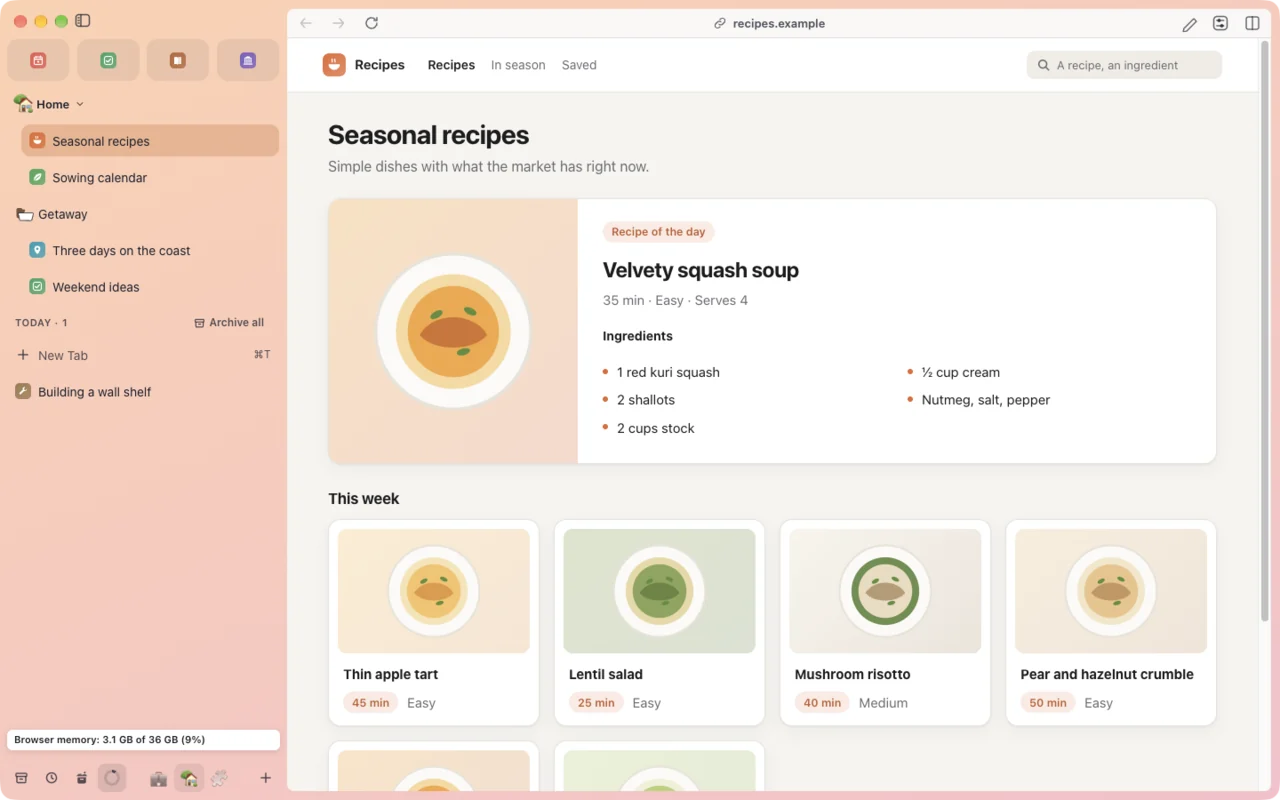
Each with its own tabs, color, theme and, if you like, its own profile: separate cookies and history.
-
Tab sessions
Save a Space’s tabs under a name and reopen them in one click; put a Space aside and get it back as it was.
-
Auto-reload
A tab reloads at a regular interval, from 5 seconds to 24 hours, and stays out of sleep.
-
Reader mode
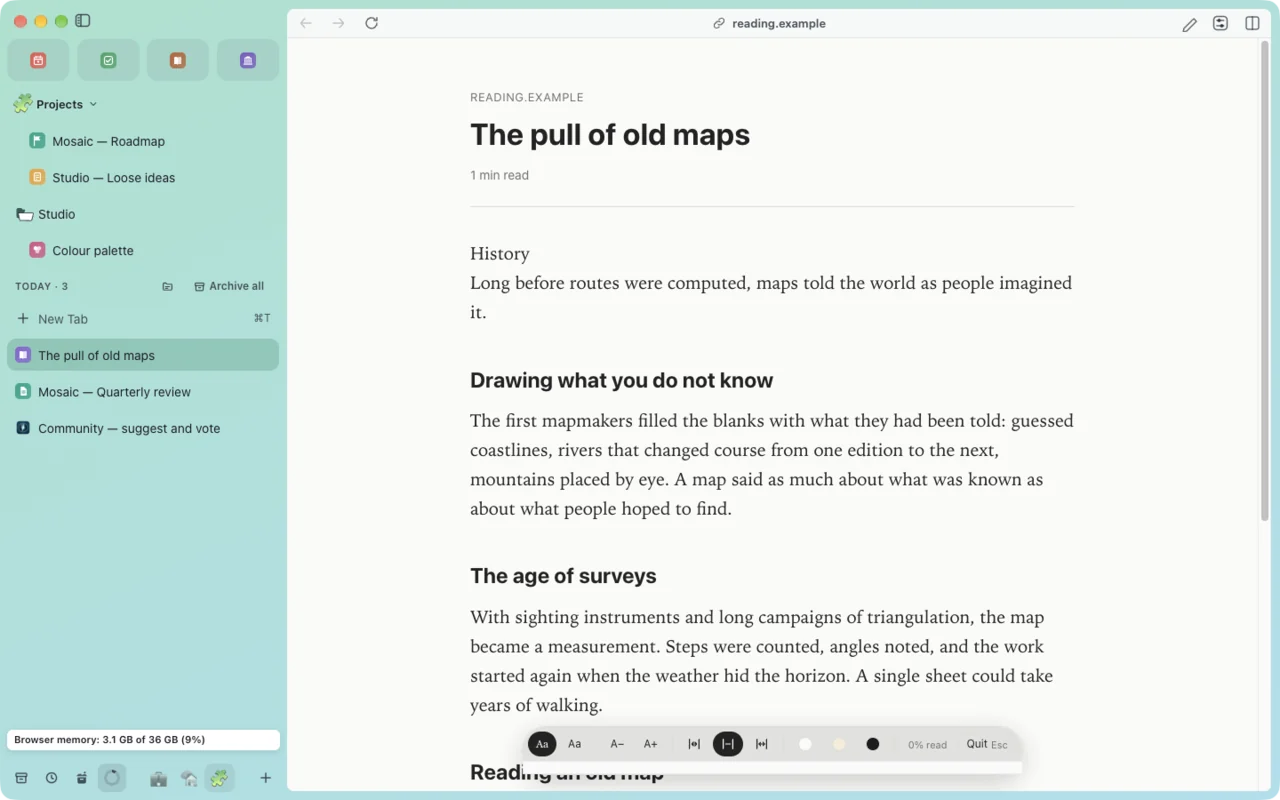
The page without the clutter, for quiet reading.
-
Read later
Put a page aside and close its tab; the list is one click away.
-
Protected video
Protected video plays, thanks to the decryption module installed and updated at every launch. Quality depends on the service.
-
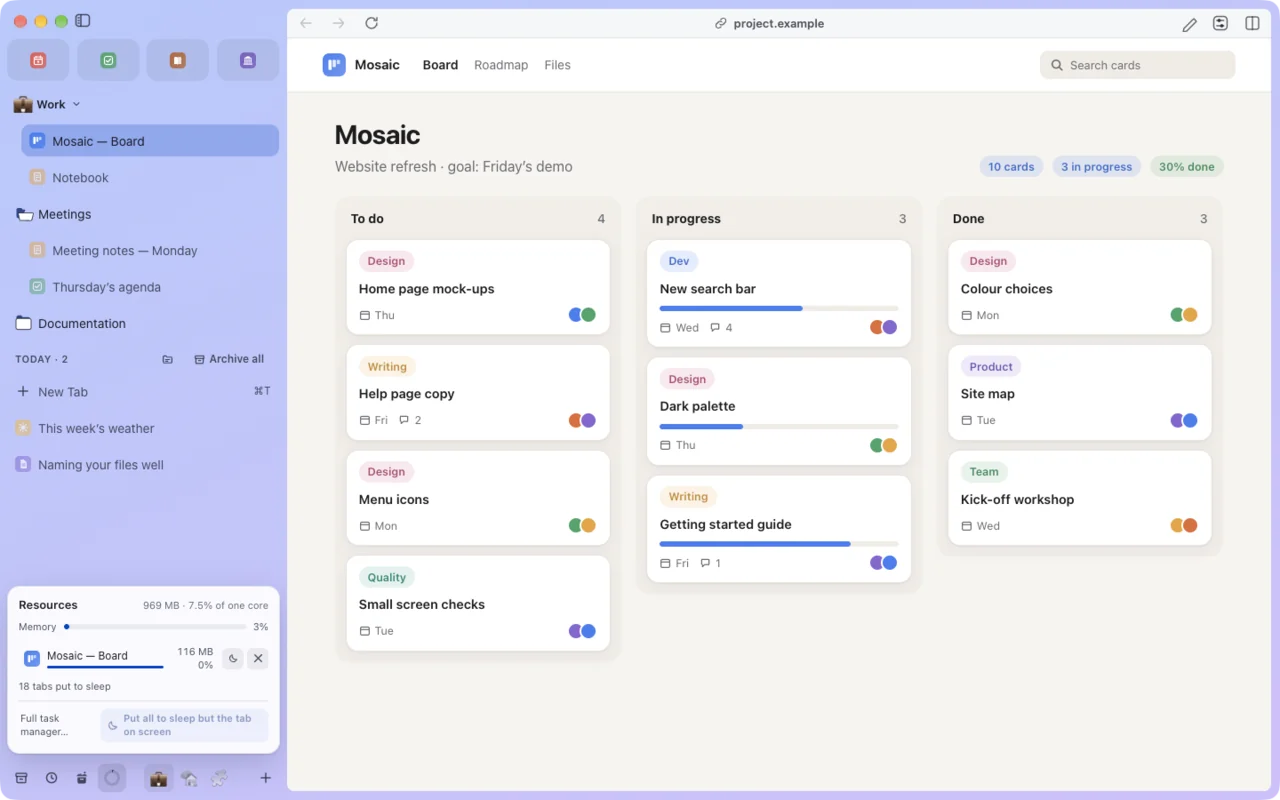
Put inactive tabs to sleep
Frees the memory of a tab left aside (or freezes it). The delay and mode are set in Tabs and windows › Sleep.
-
Archive inactive tabs of the day
Moves unpinned tabs left aside into the archive. A profile that sets its own duration keeps it.
-
Picture-in-picture when leaving a video tab
A playing video floats in a small window when you switch tabs.
-
Media player in the sidebar
A bar at the bottom of the sidebar controls playback of a tab left aside (pause, track, volume). When turned off, no page receives its script.
-
Visible tab states
Shows on each row whether the page is loading, asleep, frozen, playing sound or failed to load, with a legend in the hover card.
-
Tweaks on visited sites
Applies your site styles and scripts. When turned off, Tweaks are kept but nothing is injected.
-
Web Panels
A site beside the page, from a per-Space list; one more native view while a panel is open.
-
Reopen an archived tab with its previous pages
Keeps up to 20 history pages per archived tab (more memory in the state).
-
History, favorites and clearing for extensions
The extension APIs
history,bookmarks(read-only) andbrowsingData(by named site), for the extensions that ask for them. -
User scripts
Runs .user.js scripts that you’ve imported and reviewed.
-
Auto-scroll on middle click
Middle-clicking a page starts continuous scrolling.
-
Synchronized Scrolling of Panes
The panes of a split view scroll together (per view, for the session).
-
Mouse gestures
A right-button gesture (back, forward, close…); the context menu is held until release.
-
Swipe with two fingers to switch Spaces
Two fingers across the list of tabs go to the Space before or after, one per gesture (Settings › Navigation and search › Trackpad).
-
Watch pages
Rereads pages from time to time (10 at most) and notifies you of a change; never in a private window.
-
Read aloud
Playback buttons in reader mode and “Speak Selection” (system voice).
-
⌃Tab in order of recent use
A thumbnail panel held while ⌃ is pressed; ⇧⌃Tab goes the other way.
-
Drag a tab onto the page to split
Dragging a tab from the sidebar onto the page creates a split view; the page is captured during the drag only.
-
Tab search
The command bar in “Tabs” mode (⇧⌘A): searches the tabs of every Space, filters by Space and by state, closes duplicates with an undo.
-
Vim-style keyboard navigation
j, k, d, u, gg, G scroll, f marks the links, H and L go back and forward, J and K switch tabs, / searches; no effect in text fields.
-
Extension tab groups in the sidebar
A group created by an extension (tabGroups API) appears as a folder while it exists; its tabs are pinned there, then put back as before.
-
Regular expression search
A
.*button in find in page; the expression runs in a thread of the main process. -
Tab tree
A tab opened from a link is filed under its parent in the sidebar (indent, collapse, drag and drop). When turned off, the tree is flattened.
-
Tab containers
A tab can live in a separate identity (separate cookies, storage and permissions), created in Tabs; one more session per container used, without extensions.
-
Live folders (RSS feeds, public GitHub repositories)
A sidebar folder fills with the latest items of a feed or a public repository: one request with no account every 30 minutes for each folder you create, nothing without a folder.
-
Private window
State kept in memory, an ephemeral session, nothing written to disk, no extensions.
-
Clear a site’s data
Cache, cookies, local storage, IndexedDB, service workers and history, limited to that site’s origins.
-
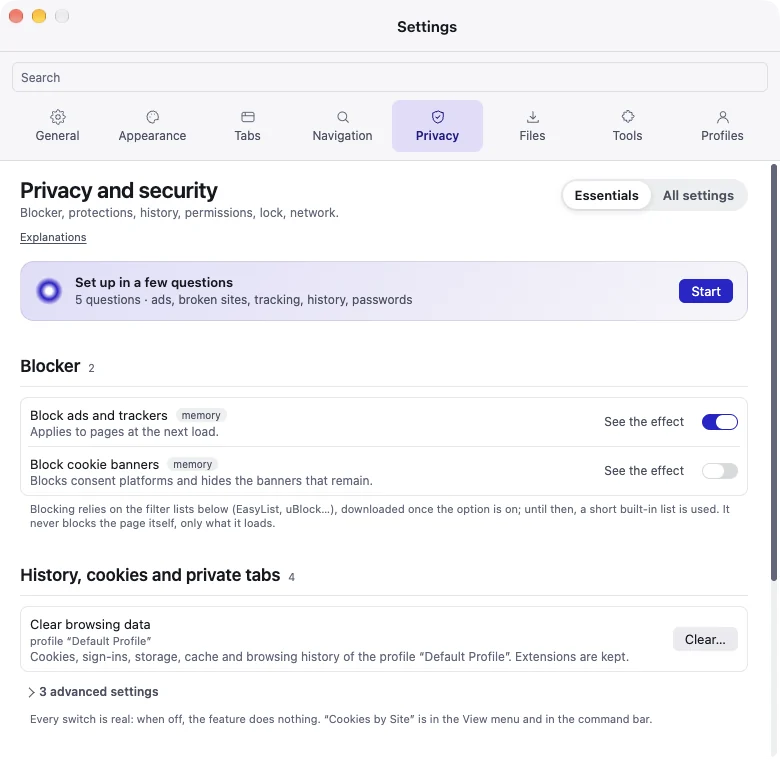
Block ads and trackers
Filters requests with lists (EasyList, uBlock…). Lists are downloaded once the option is turned on.
-
Block cookie banners
Blocks consent platforms and hides the banners that remain.
-
Blocker scriptlets and extended rules
Applies the lists’
+js(),$redirect,$removeparamand$csprules (scripts from our own library, never a list’s). May break sites. -
Digital fingerprint protection
Light noise on canvas, WebGL and audio read by a page, reduced
navigatorfigures, local addresses hidden from WebRTC. May break sites; excluded sites in Privacy and security. -
HTTPS first
Tries the https:// version of an http:// address first, and tells you if the site doesn’t offer it.
-
Send the Global Privacy Control signal
Adds “Sec-GPC: 1” to requests to tell sites not to sell your data.
-
Remove tracking parameters from addresses
Removes utm_*, fbclid, gclid… from addresses before navigating.
-
Search engine suggestions
Asks the search engine for suggestions while you type in the command bar. A profile can have its own choice (Profiles): turning it off here does not turn it off for a profile that turned it on.
-
Give the Space theme to web pages
Pages receive the Space’s palette as CSS variables: a page can read it.
-
Remove tracking parameters from copied links
Copied links (⇧⌘C, menus) lose utm_*, fbclid and the like.
-
Never save history
No page is added to history anymore (also settable per profile).
-
Custom encrypted DNS
Picks the DNS-over-HTTPS server (from a fixed list, or an https:// address of your own).
-
HTTP or SOCKS proxy
Routes requests through a proxy (also per profile). No credentials are kept.
-
Cookies by Site
A panel that lists, deletes and keeps cookies site by site (View › Cookies by Site…).
-
Private tabs in a regular window
A tab whose session stays in memory and that nothing keeps (no history, no archive).
-
Guest profile
File › “New Guest Window”: a window with no history, cookies or extensions, nothing from your Spaces, erased when it closes.
-
Clear a site’s data on close
Clears the data of listed sites when their last tab closes.
-
Custom blocking lists
Adds your own lists to the blocker (local file or address).
-
App and Space locking
A passphrase (and Touch ID) locks the interface; it isn’t data encryption.
-
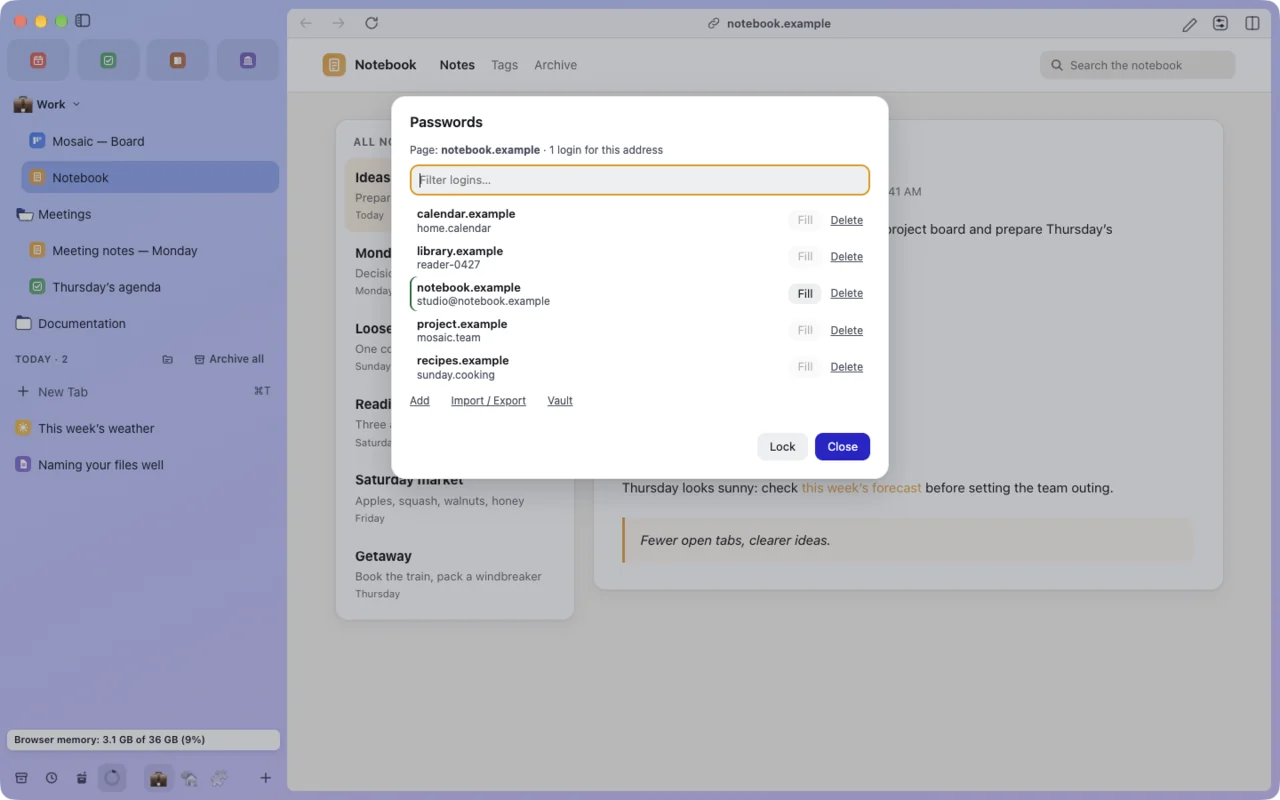
Password manager
An encrypted local vault, filled on request only and never in a private window; offers to save a typed password (File › Passwords…).
-
Web hardware APIs (WebHID, WebUSB, Web Serial)
A secure site can, after a click, ask to use a device you choose from a list that names it; never a security key, keyboard or mouse. Allowed devices can be removed in Privacy and security.
-
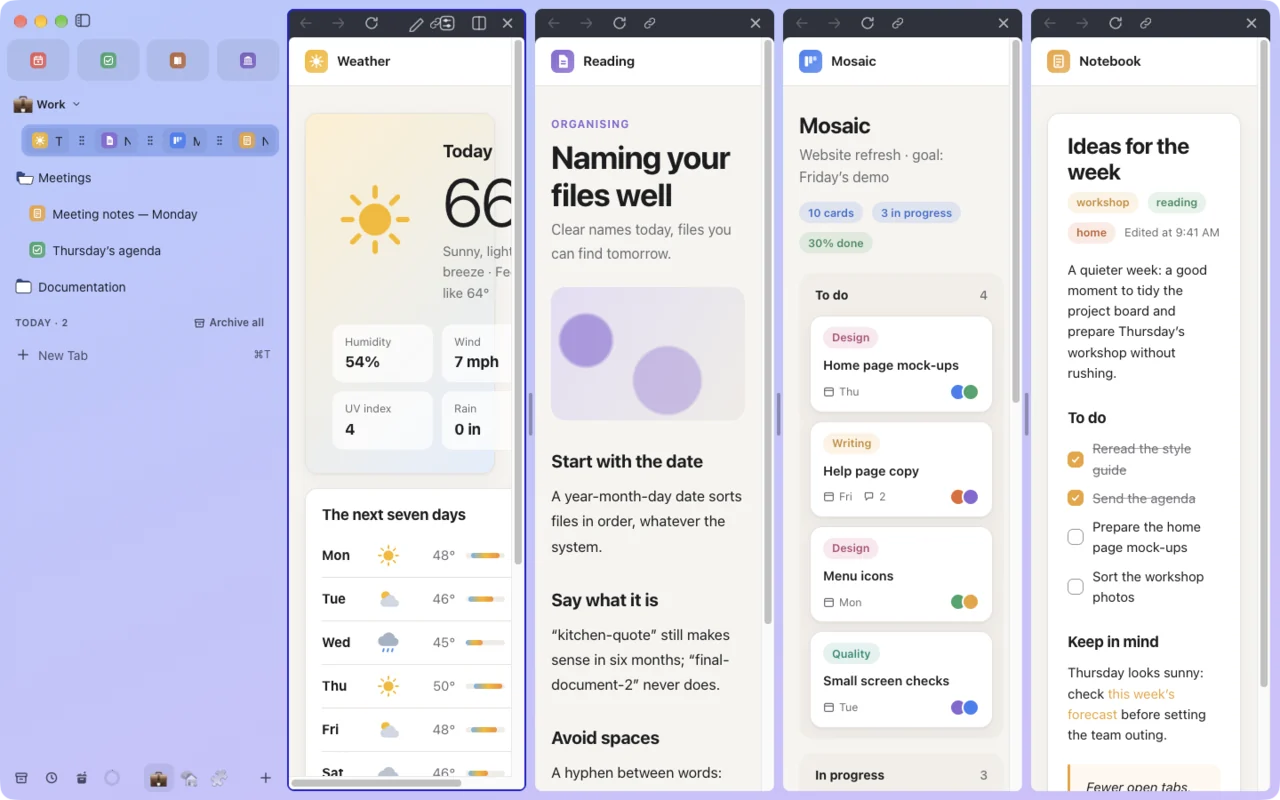
Split View
Two to four pages side by side in one window, also by dragging a tab onto the page.
-
Link routing
A link from another app opens in the Space you chose for its site.
-
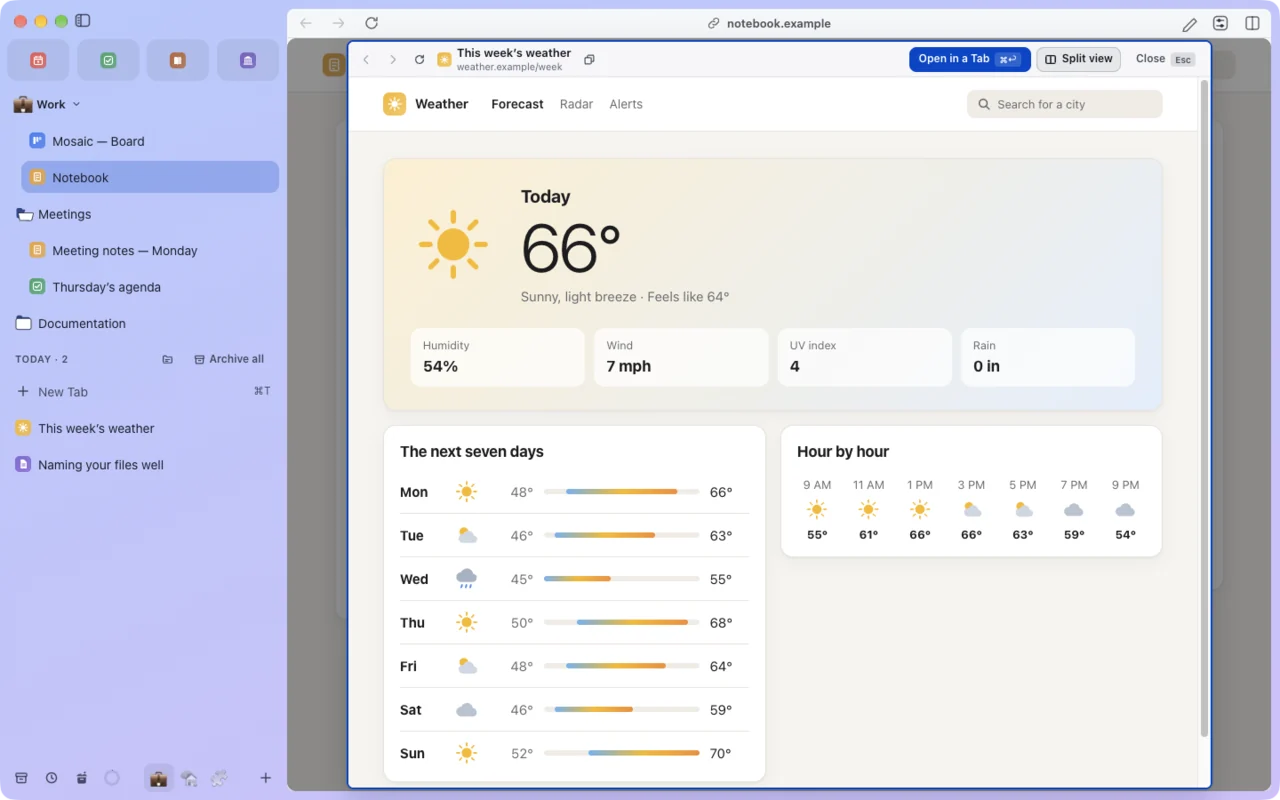
Glance with Shift + click on a link
Previews the link in a panel rather than in a new tab.
-
Glance for links to other sites
A link to another site that would open a tab opens as a preview (Glance), whatever tab it starts from.
-
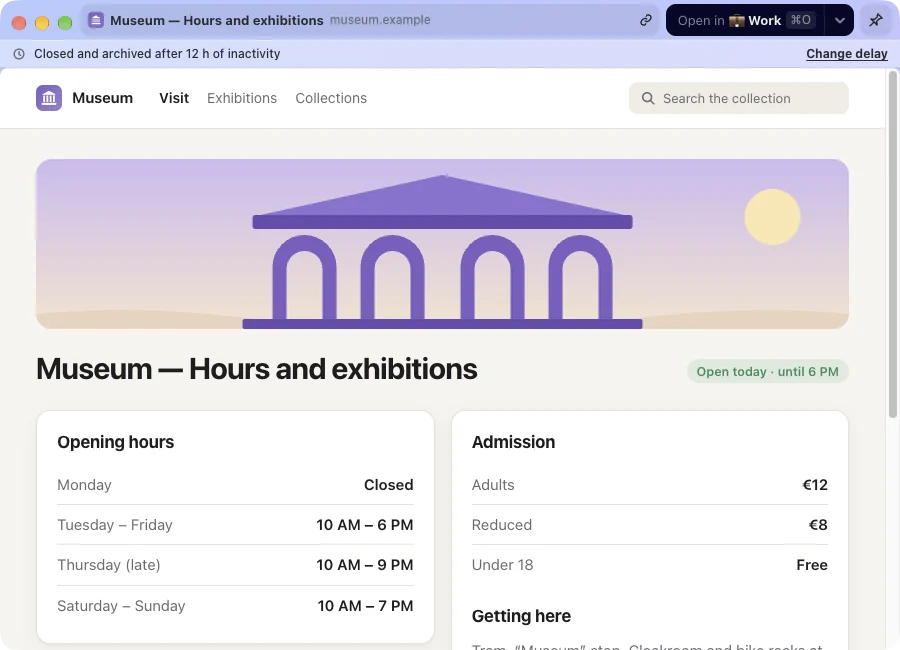
Open links from other apps in a mini window
A link from Mail, Slack… opens in a small window, unless a routing rule says otherwise.
-
Mini window shortcut in all apps
The “New Mini Window” shortcut also works when another app is in front.
-
Close and archive forgotten mini windows
A mini window left open past the delay (Links) is closed and archived.
-
Open a link in a mini window with ⌥⌘ + click
Clicking a link with ⌥⌘ held opens a mini window instead of a tab; never from a private tab.
-
Open links that open a new tab in a mini window
A link to another site that would open a new tab opens in a mini window with a single click; ⌘ + click keeps the background tab, and nothing changes from a private tab.
-
Actions bubble after a mini window download
A file downloaded by a mini window brings up an “Open” / “Show in Finder” bubble above the tray for a few seconds.
-
Tweak and theme sharing
As a file or a link to paste, with no account and no server; everything that arrives is checked before it’s offered.
-
QR code for a page or a link
“QR Code” entries in File and in a link’s menu.
-
Back closes a tab opened from a link
Going back on the first page of a tab opened from a link closes it and returns to the original tab.
-
“!” keywords in the command bar
!w word,word !w,!w: a search on a known site. -
Offer to add a site’s search
Detects the search engine a site declares and offers to add it; a request only after your click.
-
Extension keywords in the command bar
An extension’s keyword (
omniboxAPI), a space, then text and Return: the extension receives the text. No suggestions. -
Windows with independent tabs
A window opened after the first shows the pinned tabs and the ones it opens itself, not the other windows’ tabs of the day; extensions only see the first window’s tabs.
-
Open a site as an app
A site in a window without a sidebar, with its icon and name, in the original Space’s session; created on demand.
-
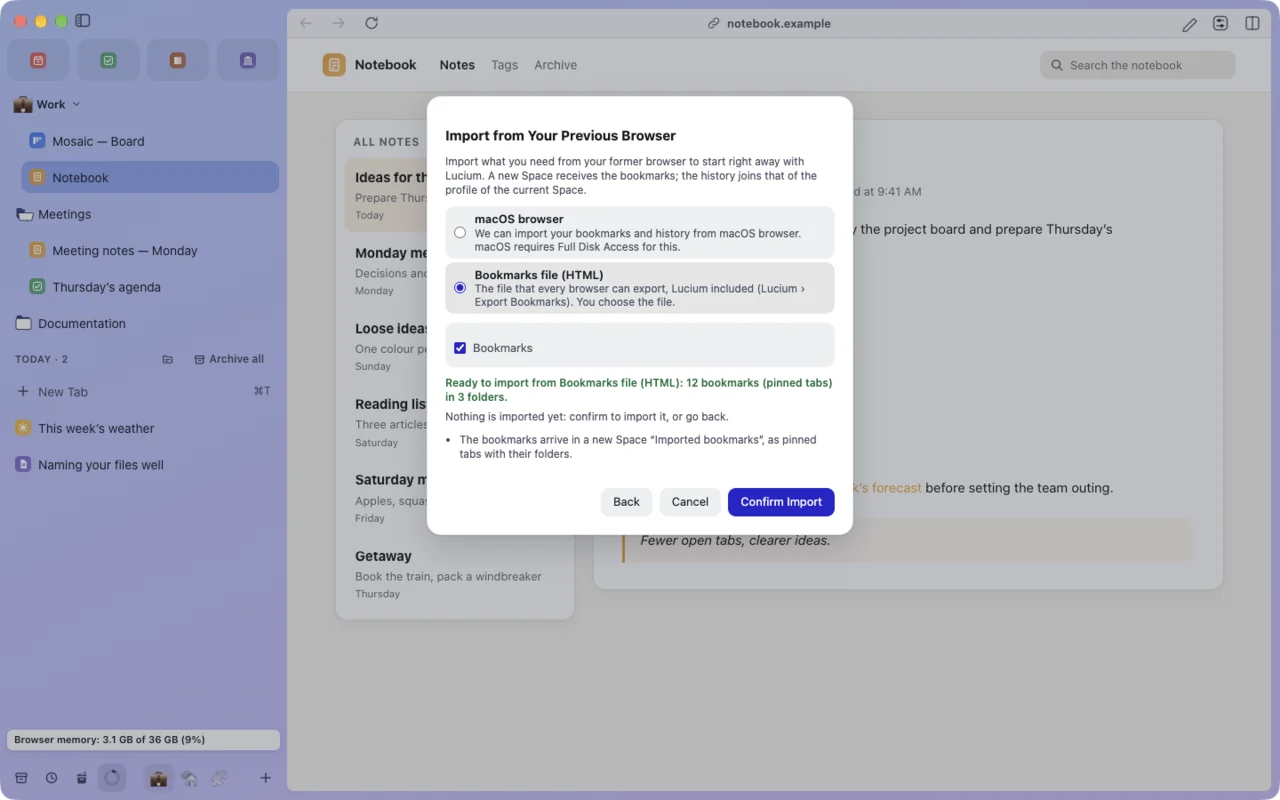
Import of Spaces and tabs
From a browser with Spaces whose format Lucium reads: Spaces, tabs, pinned tabs, folders, themes, favorites, split views and history; Tweaks from a file (their JavaScript only if you ask, and switched off).
-
Data export, encrypted if you like
Exporting can seal the file with a passphrase (AES-256-GCM); restoring asks for it again and tells a wrong passphrase from an altered file.
-
Bookmarks export
Favorites, pinned tabs and folders of every Space, as HTML, the format every browser imports.
-
Markdown export
Pick blocks of a page, copy them as Markdown or save a file, with or without the images.
-
Automatic session backups
Keeps a few dated backups of Spaces and tabs so you can go back (Settings › Files and data).
-
Look up icons for sites without one
Fetches, without cookies, the icon of favorites and tabs that have none, from the site itself.
-
Clean up download names
Cleans up the names of downloaded files (“Final_report%20v2.PDF” becomes “Final report v2.pdf”).
-
Native messaging hosts of other browsers
Lets an extension reach the desktop app installed for another browser: Lucium then launches that program.
-
Pause and resume downloads
A pause and resume button in the downloads popover.
-
Resume downloads after a restart
Keeps in a private file the address and partial file of each download in progress; never in a private window. A resume checks the partial file and the server.
-
Ask where to save each file
The file waits in a temporary folder, then is moved where you choose.
-
Remember the opening app by type
“Open With…” remembers the app you chose for that type of file.
-
Open Without Saving
An entry in a link’s menu: the file goes to a temporary folder, opens, then disappears when you close it.
-
Save as PDF with the address
File › “Save as PDF with Address…” adds the address and date in the footer.
-
Bookmark library with tags
A bookmarks panel (search, tags, editing), “Add to Bookmarks”, and HTML file import and export; favorites and pinned tabs don’t change.
-
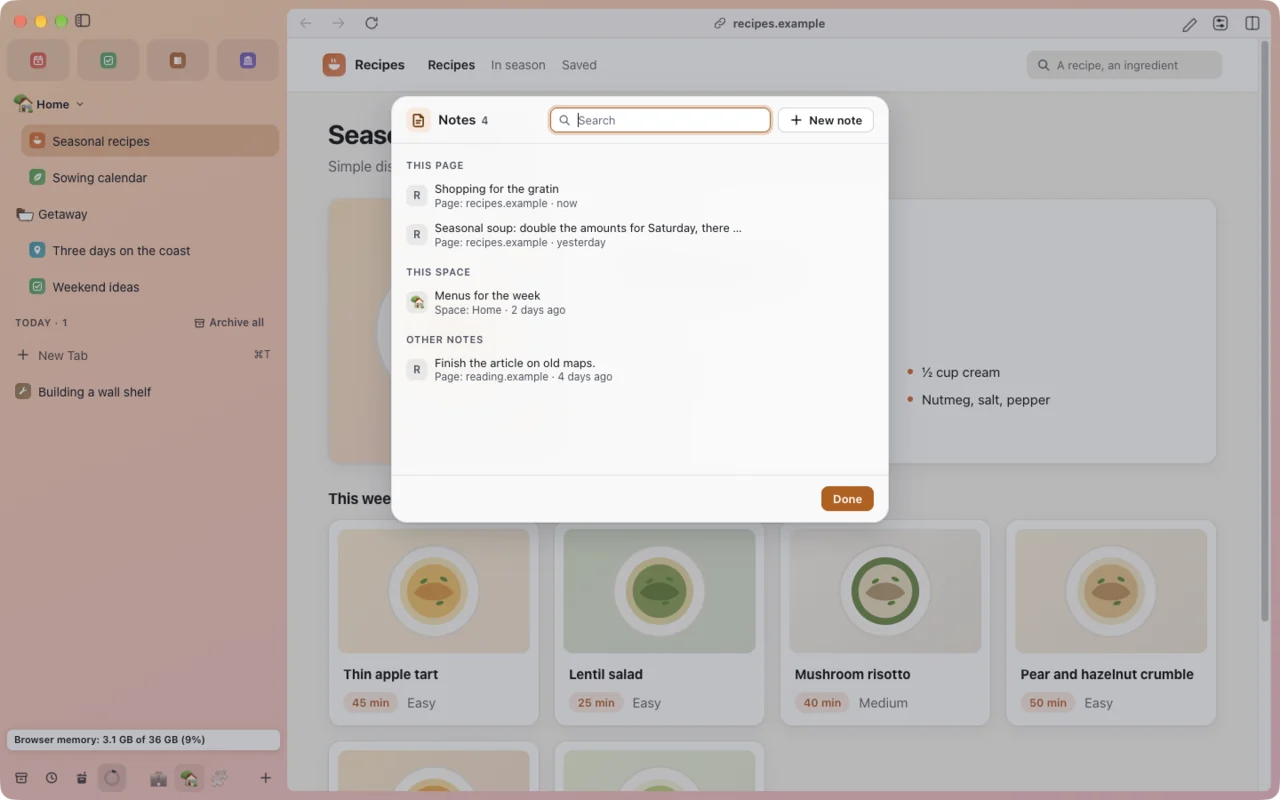
Quick notes
Short notes kept on this Mac (notes.json), tied to a page or a Space: File › Notes… or the command bar. None in a private window.
-
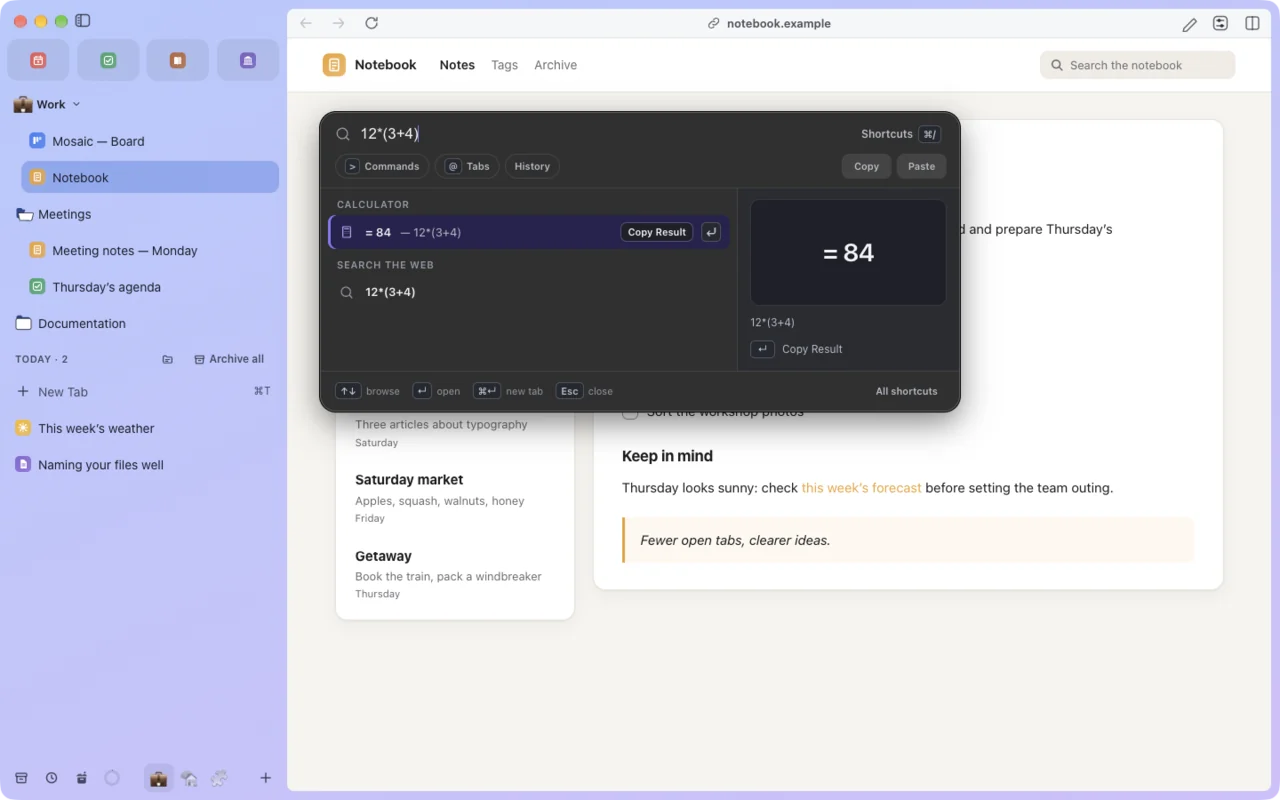
Command bar
An address, a search, an open or archived tab, an action, a search inside a site (“yt lofi”) or a sum.
-
Space themes
An editor (color wheel, harmonies, gradient, texture, light or dark), twenty ready-made themes, and themes shared as a code.
-
Screenshots
A region, the visible area or the whole page.
-
Custom shortcuts
Every menu command can get another shortcut.
-
App icon
Seven colors, shown in the Dock while Lucium runs.
-
Tab hover previews
A card shows the page’s title, address and a thumbnail. Thumbnails are taken in memory.
-
Tidy the titles of pinned tabs
A pinned tab shows the site name rather than the page title.
-
“Reload All Tabs” button
Adds the button to the sidebar header, to the right of the button that hides it. The command stays in the View menu.
-
Full address in the toolbar
Shows the whole address rather than the site name when the toolbar is visible. Setting of the main window: each other window keeps its own.
-
Move the window from the top of pages
The window moves when you drag the toolbar.
-
Sidebar on the right
Places the sidebar on the right of the window; the traffic lights stay on the left.
-
Memory and CPU per tab
Shows a tab’s memory and CPU on its hover card.
-
Download status at the foot of the sidebar
Shows the progress of a download at the foot of the sidebar, with a bubble at the end and “Resume / Dismiss” on failure.
-
Name under favorite icons
Shows the short name of each favorite under its icon (slightly taller tiles).
-
Resource gauge at the foot of the sidebar
A ring shows how much of the Mac’s memory the browser holds; a click opens the tabs that use the most, to put to sleep or close in one click.
-
Extension icons overflow menu
Puts the icons that don’t fit beside the address into a menu.
-
Folders in Read Later
Sorts the “Read Later” list into named folders.
-
Force dark mode on sites
Inverts light pages (except exceptions) with a stylesheet; pages that are already dark are left alone.
-
Thin outline around the page
Draws a thin outline around the page card.
-
Zoom level indicator
Shows “125%” in the toolbar when the page isn’t at 100%; a click resets to 100%.
-
Name windows
Gives windows a name (File menu); the Window menu becomes Lucium’s own.
-
Translated interface
Shows menus, the sidebar, the toolbar, the command bar and settings in the chosen language (Settings › General › Language). When turned off, everything stays in French.
-
Translate a page on this computer
Adds “Translate This Page…” to the File menu. The page text is translated here, with no online service; models are downloaded only on your click (Settings › Tools and extensions › Local translation).
-
Calculator in the command bar
12*(3+4)shows= 84at the top of the list; Return copies the result. -
Shortcut help
A sheet (⌘/) that lists the shortcuts by context, with a search and the ones you changed marked.
-
Compact mode
A command (View, command bar, shortcut to choose) hides the sidebar and the toolbar at once. The sidebar comes back from the side of the window and shows the address in place of the active tab’s title; the toolbar stays hidden.
-
Annotate captures before saving
After a capture, a sheet lets you draw (line, arrow, rectangle, text, blur), then copy, save or share; nothing is saved before you choose.
-
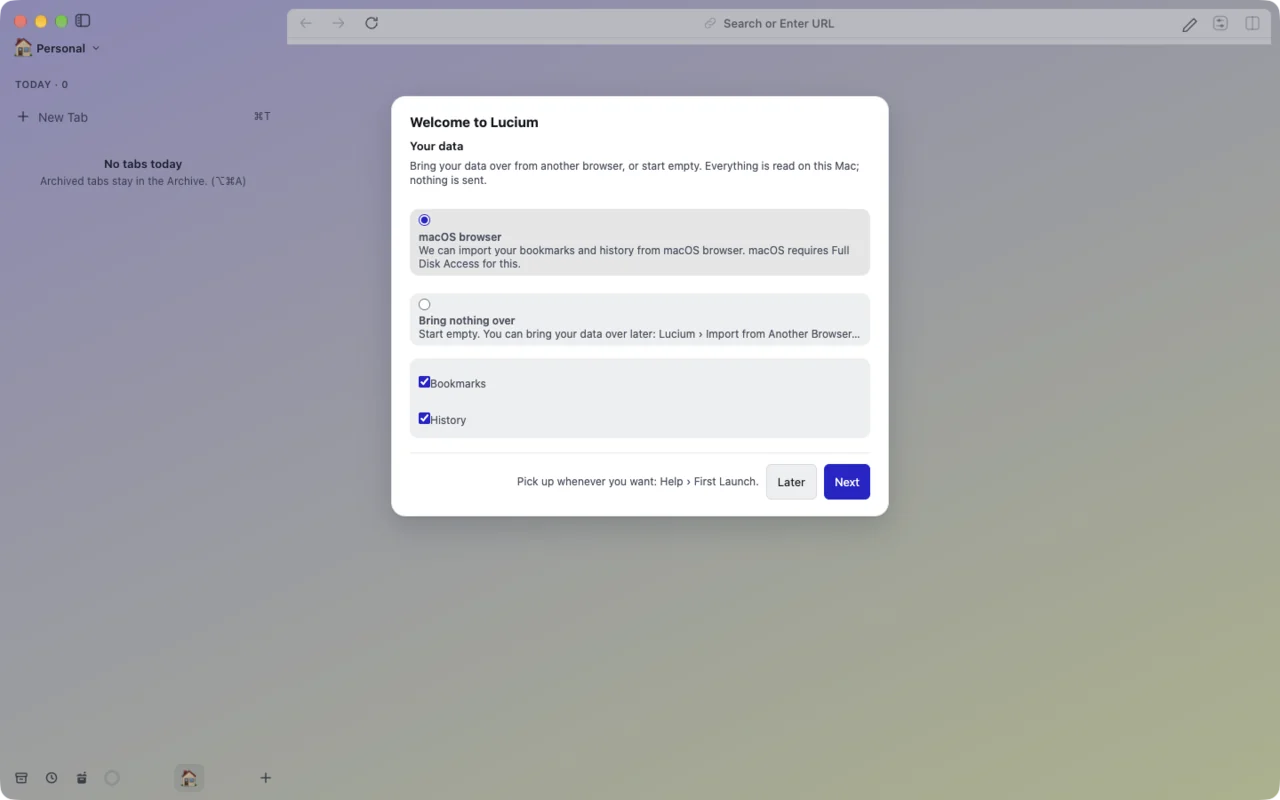
First Launch Guide
Shows a sheet when a new profile launches for the first time; you can return to it anytime via the Help › First Launch… menu
-
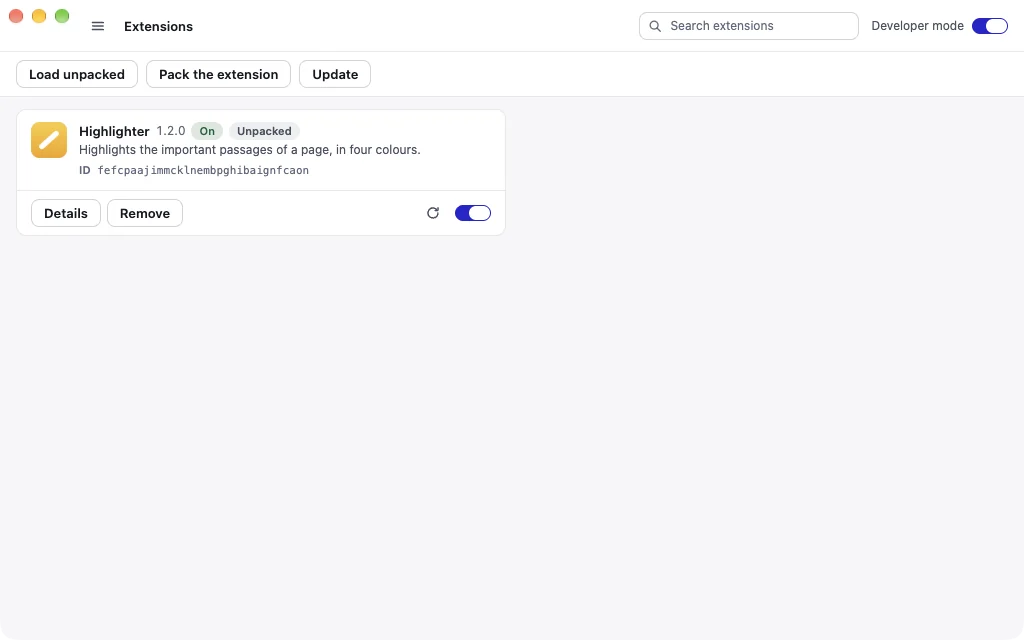
Extensions
Manifest V3, loaded from a folder or installed from the Chrome Web Store, with the side panel. Compatibility varies by extension.
-
Task manager
Every process, with its memory and CPU.
-
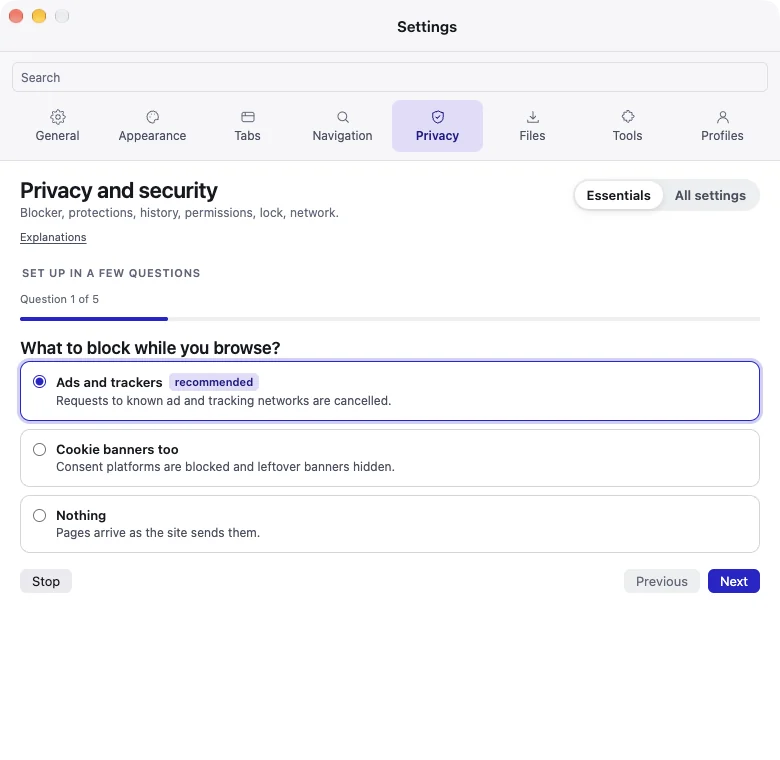
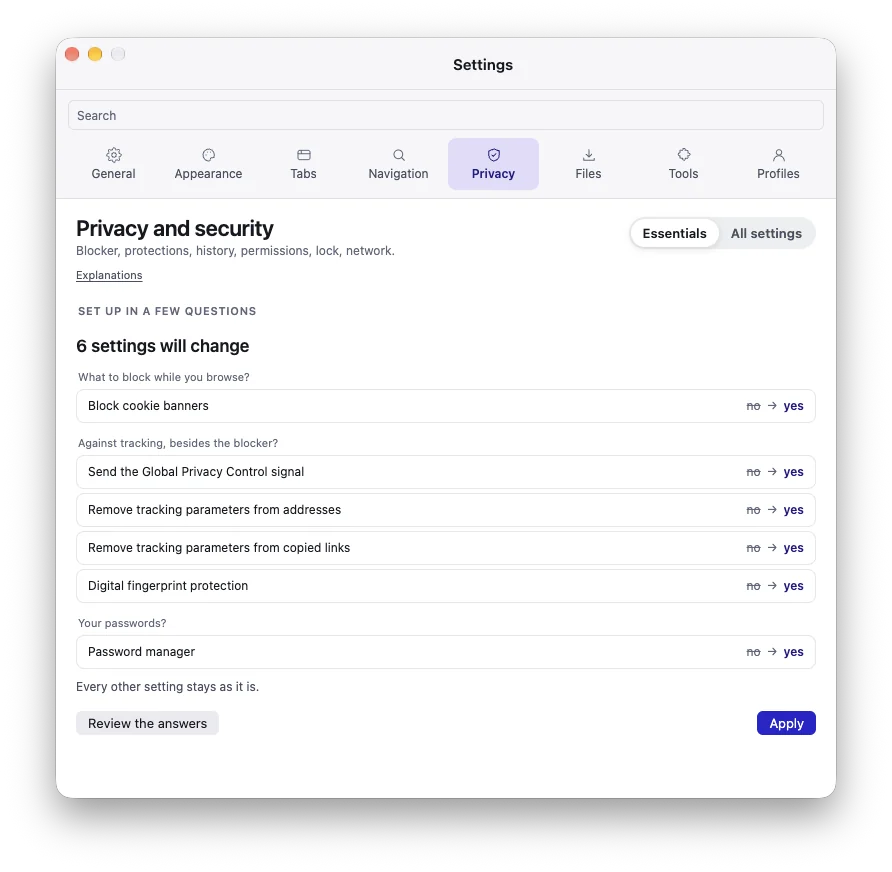
Set up in a few questions
At the top of each Settings category, questions written in advance, then what will change before you apply; Undo puts the previous values back.
-
Check for updates automatically
Looks for a new version at launch, then once a day in the configured feed. Never installs anything on its own.
-
Warn before quitting
Asks for confirmation before ⌘Q.
-
Reopen windows from the previous session
At launch, windows come back where they were. When turned off, their position is no longer saved.
-
Install from the Chrome Web Store
Turns on “Add to Lucium” on Store pages; no request without an action from you.
-
Battery Saver Mode
Less background activity at 20% battery or on demand.
-
Warn before closing a window with several tabs
Asks for confirmation before closing a window with several tabs.
-
lucium:// address commands (AppleScript, Shortcuts)
Accepts
lucium://open?url=…,lucium://new-tabandlucium://search?q=…(orarbalette://…, the former name) sent by a script, the Shortcuts app or Terminal; nothing is read or erased. -
What’s new after an update
The first time a new version runs, a sheet lists what changed, read from the changelog shipped with the application; nothing is downloaded.
No feature matches. Try another word, or suggest it.
Missing a feature? Suggest it.
Everything has a setting. Or a few questions, if you prefer.
At the top of each Settings category, “Set up in a few questions” asks questions written in advance, shows what will change, and can be undone in one click. All the questions at once: Help › Quick Setup…